Build Your Own Local AI Coding Assistant: Granite + Ollama on Windows 11 with VS Code
“A practical, step‑by‑step guide that walks you from a fresh Windows 11 machine to a private, local AI coding assistant in VS Code."
"Expect JSON with available models.”
TL;DR
Run Ollama locally, pull Granite 3.3:8B, and configure Continue.dev in VS Code to get a private, local coding assistant for chat, autocomplete, and embeddings. Use a small coder model for snappy autocomplete and Granite for deeper chat/embeddings.
1. Overview and prerequisites
Goal: Run Granite 3.3 locally via Ollama and connect it to Continue.dev in VS Code for chat, autocomplete, and embeddings.
Requirements
- Windows 11 (fully updated)
- Administrative access
- Visual Studio Code installed
- At least 10–15 GB free disk space (model + extraction + headroom)
- Stable internet for model download
Why local
- Privacy and data control
- No per‑request billing
- Offline capability and full control over models and updates
2. Install Ollama and download Granite
2.1 Download and install Ollama
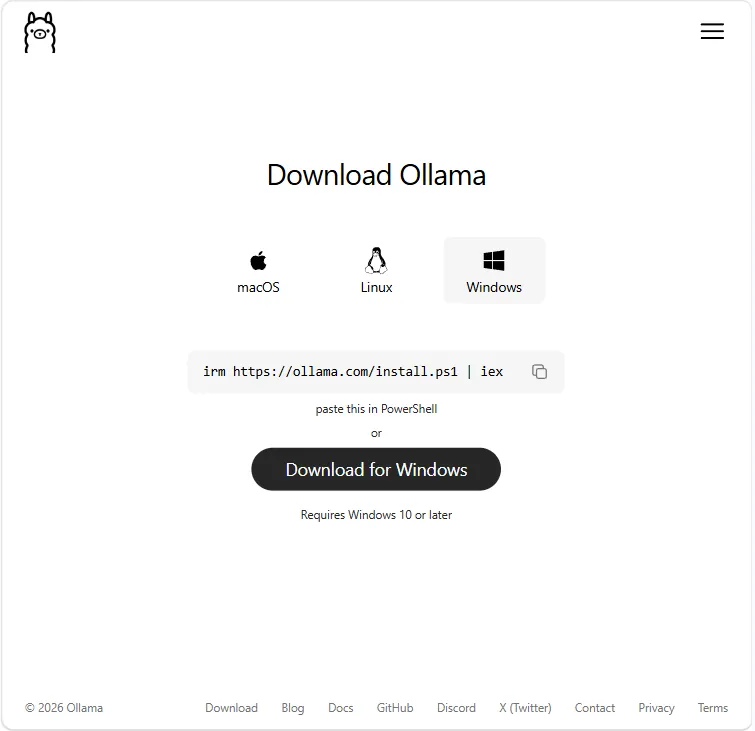
- Download the Windows installer from the official Ollama distribution and run it as Administrator.
- Confirm the
ollamabinary is on your PATH:
#Powershell
# Powershell
where.exe ollama
ollama --version
Screensot of Ollama installer UI.
2.2 Run Ollama
If the installer created a Windows service, check it with PowerShell:
#Powershell
Get-Service -Name ollama
If not, run the server in a persistent way (example: run ollama serve in a dedicated terminal, or create a Windows service using NSSM or Task Scheduler):
#Powershell
ollama serve
2.3 Pull Granite model
#Powershell
ollama pull granite3.3:8b
Note: The model is ~5 GB. Allow several minutes for download and extraction. Ensure you have at least 10–15 GB free to avoid extraction issues.
2.4 Confirm the model is present
#Powershell
ollama list
# Expected output includes: granite3.3:8b
3. Configure Continue.dev in Visual Studio Code
3.1 Correct config path
Place your YAML in the local Continue folder. Preferred path:
C:\Users\<YourUser>\.continue\local\config.yaml
If Continue.dev does not detect models, also check:
C:\Users\<YourUser>\.continue\config.yaml
Hint: Remove duplicates or conflicting entries.
3.2 Recommended YAML (chat, autocomplete, embeddings)
Use this exact YAML in C:\Users\<YourUser>\.continue\local\config.yaml. It took me a while to work out, that adding the cinfg.yml does not work if added to the .continue root directory:
#Yaml
name: Local Config
version: 1.0.0
schema: v1

provider: ollama
api_base: http://localhost:11434

models:
  - name: Granite Chat
    provider: ollama
    model: granite3.3:8b
    role: chat

  - name: Granite Autocomplete
    provider: ollama
    model: qwen2.5-coder:1.5b
    role: autocomplete

  - name: Granite Embeddings
    provider: ollama
    model: granite3.3:8b
    role: embeddings
Why this mix: Granite for chat/embeddings; a smaller coder model for snappy autocomplete.
3.3 Apply changes
Save the YAML file.
Restart VS Code.
Open Continue: Ctrl+Shift+P → Continue: Focus Continue Sidebar.
Confirm the model dropdown lists the configured roles.
4. Verify everything is working
4.1 API and model checks (PowerShell)
#Powershell
# List models
ollama list

# Quick API check
Invoke-RestMethod http://localhost:11434/api/tags

# Check process
Get-Process -Name ollama

# Check port listening
netstat -ano | findstr 11434
Expected: Invoke-RestMethod returns JSON with available models.
4.2 VS Code tests
Chat: Highlight code or open the Continue chat and ask a question. The first response may be slow while the model loads (10–30s on CPU).
Autocomplete: Open a code file (e.g., Python) and type a function signature; inline suggestions should appear. If slow, use a smaller autocomplete model.
5. Firewall and port access
If you need remote access or your firewall blocks local connections, allow Ollama port 11434:
#Powershell
New-NetFirewallRule -DisplayName "Ollama API" -Direction Inbound -LocalPort 11434 -Protocol TCP -Action Allow
Security note: If you expose the port, restrict access to trusted networks only.
6. Updating models and Ollama
6.1 Update Ollama binary
Re-run the installer or follow official upgrade instructions.
If running as a Windows service, stop the service, replace the binary, then restart the service.
6.2 Update a model
#Powershell
ollama pull granite3.3:8b
# or force refresh
ollama pull --force granite3.3:8b
6.3 Recover from corruption
#Powershell
ollama rm granite3.3:8b
ollama pull granite3.3:8b
Best practice: Periodically run ollama list and re‑pull models you actively use. Keep a small coder model for autocomplete.
7. Removing Ollama and models completely
7.1 Stop the server
If running in a terminal, close it or stop the process.
If installed as a service, stop and disable it via Services or PowerShell.
7.2 Remove models
#Powershell
ollama rm granite3.3:8b
ollama list
7.3 Uninstall Ollama
Use Add/Remove Programs if installed via installer.
Or remove manually:
#Powershell
Remove-Item -Path "C:\Program Files\Ollama" -Recurse -Force
Remove-Item -Path "C:\Users\<YourUser>\.ollama" -Recurse -Force
7.4 Clean Continue config
Remove or revert .continue\local\config.yaml if you no longer want local providers.
8. Performance tips and GPU guidance
Autocomplete: Use a small coder model (e.g., qwen2.5-coder:1.5b) for low latency.
Chat vs speed: Use a larger model for deep chat and a smaller model for inline suggestions.
Windows GPU (AMD): Ollama on Windows has limited AMD GPU support; consider LM Studio or llama.cpp HIP builds for AMD acceleration on Windows.
Linux GPU (ROCm): Install ROCm and configure Ollama to use the AMD GPU for best performance on Linux.
9. Troubleshooting checklist
ollama list shows the model.
Invoke-RestMethod http://localhost:11434/api/tags returns JSON.
YAML is in .continue/local/config.yaml.
No duplicate model definitions in other .continue files.
Port 11434 is listening and allowed through firewall.
If Connect is greyed out in the GUI: choose Skip and configure manually and ensure YAML is authoritative.
10. Quick copyable commands (summary)
#Powershell
# Verify ollama
where.exe ollama
ollama --version

# Pull models
ollama pull granite3.3:8b
ollama pull qwen2.5-coder:1.5b

# List models
ollama list

# API check
Invoke-RestMethod http://localhost:11434/api/tags